2012年12月8日
Mew をインストールする時は aptitude がすごい楽だった。
Debian squeeze on coLinux で、 Mew をインストールしたけど、
===
$ sudo aptitude install mew
===
として、 init.el に
===
(autoload 'mew "mew" nil t)
(autoload 'mew-send "mew" nil t)
===
と書き、~/.mew.el に
===
;; IMAP 用
(setq mew-proto "%")
(setq mew-user "めーるあどれす@Gmail.com")
(setq mew-mail-domain "gmail.com")
(setq mew-imap-server "imap.gmail.com")
(setq mew-imap-user "めーるあどれす@gmail.com")
(setq mew-imap-auth t)
(setq mew-imap-ssl t)
(setq mew-imap-ssl-port "993")
(setq mew-smtp-auth t)
(setq mew-smtp-ssl t)
(setq mew-smtp-ssl-port "465")
(setq mew-smtp-user "めーるあどれす@gmail.com")
(setq mew-smtp-server "smtp.gmail.com")
===
とするだけで良かった。 ca-certificates stunnel や ca-certificates も自動で入るし、
===
(setq mew-prog-ssl "/usr/bin/stunnel4")
===
と指定する必要も、 cygwin で必要だった
===
(setq mew-ssl-ver 4
mew-ssl-minor-ver 53)
===
とかも要らなかった。また、
===
(setq mew-ssl-verify-level 0)
===
も行わなくて、うまくいった。
2012年12月7日
debian squeeze の cmigemo ってどこ?
deb は出てないのかなー?
wheezy(testing)
http://packages.debian.org/ja/wheezy/cmigemo
sid(unstable)
http://packages.debian.org/ja/sid/cmigemo
ruby migemo は以下で入った。
===
su
aptitude install migemo
===
colinux で aspell をインストール
===
sudo aptitude install aspell aspell-en
===
とするだけで入るけど、emacs とかから利用すると
===
Error: No word lists can be found for the language "ja_JP"
===
といわれてしまうので。
===
cd ~
echo lang en_US > .aspell.conf
===
としておく。
sudo aptitude install aspell aspell-en
===
とするだけで入るけど、emacs とかから利用すると
===
Error: No word lists can be found for the language "ja_JP"
===
といわれてしまうので。
===
cd ~
echo lang en_US > .aspell.conf
===
としておく。
colinux でタイムゾーン指定
===
dpkg-reconfigure tzdata
===
とすれば、LANG で指定された言語でタイムゾーンを選ぶメニューモードになるから、
そのまま選べば良かった。ぐぐったら、以下も必要とのことでやっておいたが、何を
やっているのかはわからない
===
cp /etc/default/rcS /etc/default/rcS.orig
emacs /etc/default/rcS
*** /etc/default/rcS.orig Wed Dec 5 00:47:22 2012
--- /etc/default/rcS Wed Dec 5 00:47:33 2012
***************
*** 10,16 ****
TMPTIME=0
SULOGIN=no
DELAYLOGIN=no
! UTC=yes
VERBOSE=no
FSCKFIX=no
RAMRUN=no
--- 10,16 ----
TMPTIME=0
SULOGIN=no
DELAYLOGIN=no
! UTC=no
VERBOSE=no
FSCKFIX=no
RAMRUN=no
===
として、
===
/etc/init.d/hwclock.sh start
===
colinux に ssh した時の環境変数 LANG 指定
ssh で、colinux 上の debian に接続したとき、日本語表示がされなくて、
なぜかと思ったら、環境変数 LANG が飛んでいた。いちいち、ログイン
後に設定するのは嫌なので、以下の方法で回避。全部、colinux 側の
話で、クライアント側の話じゃない事に注意。
===
su
cp /etc/ssh/sshd_config /etc/ssh/sshd_config.orig
emacs /etc/ssh/sshd_config
diff -a /etc/ssh/sshd_config.orig /etc/ssh/sshd_config
27a28
> PermitUserEnvironment yes
service ssh restart
exit
cd ~
mkdir .ssh
emacs .ssh/environment
cat .ssh/environment
LANG=ja_JP.UTF-8
exit
なぜかと思ったら、環境変数 LANG が飛んでいた。いちいち、ログイン
後に設定するのは嫌なので、以下の方法で回避。全部、colinux 側の
話で、クライアント側の話じゃない事に注意。
===
su
cp /etc/ssh/sshd_config /etc/ssh/sshd_config.orig
emacs /etc/ssh/sshd_config
diff -a /etc/ssh/sshd_config.orig /etc/ssh/sshd_config
27a28
> PermitUserEnvironment yes
service ssh restart
exit
cd ~
mkdir .ssh
emacs .ssh/environment
cat .ssh/environment
LANG=ja_JP.UTF-8
exit
===
debian sudo: unable to resolve host debian
colinux の Debian squeeze で、sudo をインストールした
===
su
aptitude install sudo
cp /etc/sudoers /etc/sudoers.orig
visudo
aptitude install diff
diff -a /etc/sudoers.orig /etc/sudoers
18c18
<
---
> clothoid ALL=(ALL) ALL
exit
===
けど、実際、sudo を実行すると実行できるが
===
debian sudo: unable to resolve host debian
===
といわれる。/etc/hosts に
===
127.0.1.1 debian
===
を追記したら、出なくなった。
face-attribute: Wrong type argument: symbolp, (link-visited info-xref)
color-theme 6.5.5 で
===
(add-to-list 'load-path
"~/.emacs.d/elpa/color-theme-6.5.5")
(require 'color-theme)
(color-theme-initialize)
(color-theme-gnome2)
===
===
Warning (initialization): An error occurred while loading `/home/clothoid/.emacs.d/init.el':
Symbol's function definition is void: color-theme-initialize
q
To ensure normal operation, you should investigate and remove the
cause of the error in your initialization file. Start Emacs with
the `--debug-init' option to view a complete error backtrace.
===
===
Debugger entered--Lisp error: (void-function color-theme-initialize)
(color-theme-initialize)
eval-buffer(#<buffer *load*> nil "/home/clothoid/.emacs.d/init.el" nil t) ; Reading at buffer position 12879
load-with-code-conversion("/home/clothoid/.emacs.d/init.el" "/home/clothoid/.emacs.d/init.el" t t)
load("/home/clothoid/.emacs.d/init" t t)
#[nil " \205\264 \306=\203 \307 \310Q\2027 \311=\2033 \312\307\313\314#\203# \315\2027 \312\307\313\316#\203/ \317\2027 \315\2027 \307 \320Q \321 \322\n\321\211#\210 \321=\203_ \323\324\325\307 \326Q!\" \322\f\321\211#\210 \321=\203^ \n ) \203\244 \327 !\330\232\203\244 \331 !\211 \332P \"\333 \"!\203\200 \"\202\213 \333
!\203\212
\202\213 \313\211 \203\243 \334
\"\203\241 \335\336
#\210\337\340!\210
* #?\205\263 \313 $\322\341\321\211#))\207" [init-file-user system-type user-init-file-1 user-init-file otherfile source ms-dos "~" "/_emacs" windows-nt directory-files nil "^\\.emacs\\(\\.elc?\\)?$" "~/.emacs" "^_emacs\\(\\.elc?\\)?$" "~/_emacs" "/.emacs" t load expand-file-name "init" file-name-as-directory "/.emacs.d" file-name-extension "elc" file-name-sans-extension ".el" file-exists-p file-newer-than-file-p message "Warning: %s is newer than %s" sit-for 1 "default" alt inhibit-default-init inhibit-startup-screen] 7]()
command-line()
normal-top-level()
===
と言われ、
===
(add-to-list 'load-path
"~/.emacs.d/elpa/color-theme-6.5.5")
(require 'color-theme)
;; (color-theme-initialize)
(color-theme-gnome2)
===
とすると起動するが、M-x color-theme-select すると
===
face-attribute: Wrong type argument: symbolp, (link-visited info-xref)
===
と言われてしまう。
インストールは
M-x install-elisp
http://repo.or.cz/w/emacs.git/blob_plain/1a0a666f941c99882093d7bd08ced15033bc3f0c:/lisp/emacs-lisp/package.el
として、
===
;;package.elの設定
(when (require 'package nil t)
;;パッケージリポジトリにMarmaladeと開発者運営のELPAを追加
(add-to-list 'package-archives
'("marmalade" . "http://marmalade-repo.org/packages/"))
(add-to-list 'package-archives '("ELPA" . "http://tromey.com/elpa/"))
;;インストールするディレクトリを指定
(setq package-user-dir(concat user-emacs-directory "elpa"))
;;インストールしたパッケージにロードパスを通して読み込む
(package-initialize))
===
と書き、M-x list-packages 一覧の中からcolor-themeの所で"i"を入力して、
"x"とインストールしたが、途中
===
Leaving directory `/home/clothoid/.emacs.d/elpa/color-theme-6.5.5'
Compiling file /home/clothoid/.emacs.d/elpa/color-theme-6.5.5/color-theme-pkg.el at Thu Dec 6 03:55:41 2012
Entering directory `/home/clothoid/.emacs.d/elpa/color-theme-6.5.5/'
Compiling file /home/clothoid/.emacs.d/elpa/color-theme-6.5.5/color-theme.el at Thu Dec 6 03:55:41 2012
color-theme.el:200:1:Warning: cl package required at runtime
In color-theme-select:
color-theme.el:582:10:Warning: `beginning-of-buffer' used from Lisp code
That command is designed for interactive use only
In color-theme-install-variables:
color-theme.el:1419:10:Warning: `make-variable-frame-local' is an obsolete
function (as of Emacs 22.2); explicitly check for a frame-parameter
instead.
In end of data:
color-theme.el:15171:1:Warning: the following functions are not known to be defined: plist-to-alist,
color-theme-face-attr-construct, set-face-property,
color-theme-spec-compat, reporter-compose-outgoing,
mail-position-on-field, mail-text
===
と言われたのが気になり、また、M-x list-packages 一覧の中からcolor-themeの所で"d"を入力して、
"x"とアンインストールを試みるも
===
Delete package `color-theme-6.5.5'? (y or n)
byte-code: Wrong type argument: stringp, #[(directory &optional recursive) "ÅÆ !! Ç È\"‰ ƒ È
#‚I ƒ3
„- É Ê #ƒ- ËÌ!‚I Í !‚I
ƒF Î !„F ÏÐÉ Ê #\"ˆÑ !)‡" [directory handler recursive delete-by-moving-to-trash directory-files-no-dot-files-regexp directory-file-name expand-file-name find-file-name-handler delete-directory directory-files ...] 7 1842094 (let ((dir (expand-file-name (read-file-name "Delete directory: " default-directory default-directory nil nil)))) (list dir (if (directory-files dir nil directory-files-no-dot-files-regexp) (y-or-n-p (format "Directory `%s' is not empty, really delete? " dir)) nil)))]
Mark set
===
と言われてしまう始末。どうしたらいいのだろうか。
2012年12月5日
gnupack 10.02 + SKK 日本語入力 FEP β0+4i with AZIK + debian 6.0.1 on coLinux 0.79
-*- mode: org; coding: cp932-dos -*-
Windows 7 stater 32bit低スペノートPC
Acer D257-A71C
http://www.acer.co.jp/ac/ja/JP/content/model/LU.SFW0D.096
に gnupack 10.02 (cygwin) + SKK 日本語入力 FEP β0+4i with AZIK +
debian 6.0.1 on coLinux 0.79 を入れて、 Windows 上で美しいターミナル
mintty と、(cygwin じゃない)本物の Linux を手に入れる。
* gnupack 10.02
** install
gnupack Users Guide
http://gnupack.sourceforge.jp/docs/latest/UsersGuide.html
にアクセス。
右側のメニューの [ダウンロード]>[gnupack]をクリック。

[gnupack_devel-10.02.exe]をクリック

ダウンロードが始まるので、適当な場所に保存(ここでは、デスクトップ)。

ダウンロードしたファイルを実行
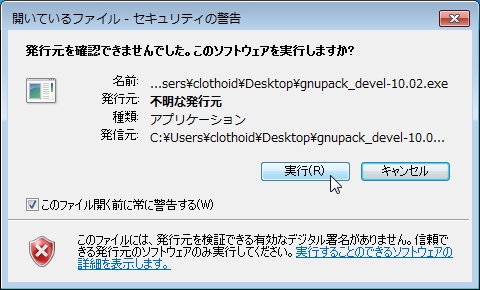
解凍先を指定 (ここでは、c:\) し、[解凍]ボタンを選択

ファイルの展開が始まり、勝手に終る。
** setting
mintty の設定や必要なプログラムのインストールを行う。
起動は以下のプログラムを実行(クリック)するだけ。
===
C:\gnupack_devel-10.02\mintty.exe
===
必要に応じて、フォルダを作っておく
===
# mkdir bin
# mkdir download
# mkdir tmp
===
** lha をインストール
lzh を解凍するのに必要で、gdi++のインストール時に使う
===
cd download/
wget http://sohda.net/cygwin/dist/packages/lha/lha-114i-1.tar.bz2
tar xjvf lha-114i-1.tar.bz2
cp usr/bin/lha.exe ~/bin/
cp -rf usr/man ~/
rm -rf *
cd ..
===
** cocot をインストール
ssh で接続した際の日本語文字化け防止に、cocot を使う
===
cd download/
wget http://vmi.jp/software/cygwin/cocot-20100903-bin.tar.bz2
tar xjf cocot-20100903-bin.tar.bz2
mv cocot.exe ~/bin/
rm -rf *
cd ..
===
** p7zip
7z を解凍するのに必要で、Debian のイメージファイル等を解凍する場合に使う
*** install
===
apt-cyg install p7zip
===
** gdi++
Windows のアンチエイリアスがいまいちなので、改善する
*** install
===
mkdir -p ~/download/gdi++
cd download/gdi++
wget http://free.flop.jp/gdi++/src/gdi0869.7z
wget http://free.flop.jp/gdi++/oldsrc/gdi0789.lzh
~/bin/lha.exe x gdi0789.lzh
7z x gdi0869.7z
cd ..
mv gdi++ /app/
===
*** setting
===
cp /app/gdi++/gdi++.ini /app/gdi++/gdi++.ini.orig
cp /c/gnupack_devel-10.02/config.ini /c/gnupack_devel-10.02/config.ini.orig
emacs /app/gdi++/gdi++.ini /c/gnupack_devel-10.02/config.ini
diff -a /app/gdi++/gdi++.ini.orig /app/gdi++/gdi++.ini
2,7c2,15
< AlternativeFile=.\ini\3.ini
<
< [GdiTray]
< MultiINISelector=1
< RedrawDelay=50
< CoolMenu=1
---
> HookChildProcesses=1
> HintingMode=2
> AntiAliasMode=2
> TextTuning=0
> TextTuningR=1
> TextTuningG=1
> TextTuningB=1
> NormalWeight=40
> BoldWeight=32
> ItalicSlant=32
> EnableKerning=0
> MaxHeight=128
> LcdFilter=2
> LoadOnDemand=1
diff -a /c/gnupack_devel-10.02/config.ini.orig /c/gnupack_devel-10.02/config.ini
40c40
< ;Gdi = %INST_DIR%\app\gdi++\gdi++.exe
---
> Gdi = %INST_DIR%\app\gdi++\gdi++.exe
** mintty の画面やフォント、色などの設定(お好み)
mintty のタイトルバーを右クリックし、[Options...] を選択

左側のメニューツリーから、[Lock] を選択し、[Transparency] を [High] に
設定。

左側のメニューツリーから、[Mouse] を選択し、[Right click action] を
[Show menu] に変更。

左側のメニューツリーから、[Terminal] を選択し、[Type] を
[xterm-256color] に変更で、[OK] をクリック。

(フォントの設定や Windows サイズの設定は config.ini で行う。また、
Locale で、[ja.JP]、[Character Set] で [UTF-8] にすると、wget とかの出
力が文字化けするので、何も設定しない)
* remapkey
キー割り当てを変えないと、ちぬ。
** install
===
cd ~/download/
wget http://download.microsoft.com/download/8/e/c/8ec3a7d8-05b4-440a-a71e-ca3ee25fe057/rktools.exe
cygstart rktools.exe
===
[プログラム互換性アシスタント] が起動するが、そのまま[プログラムを実行
する]を選択する。

[Next]

[I Agree] にして、[Next]

[Name] を決めて、[Next]

内容を確認して、[Install Now]

インストールが始まると[ユーザーアカウントの制御]が出てくるが、そのまま
[はい]を押せば、実行される。
[Finish]

===
cd ..
rm -rf download/*
===
** setting
Windows スタート:[プログラムとファイルの検索] で、remapkey と入力し、プ
ログラムを検出させ、右クリック:[管理者として実行]を選択。

インストールが始まると[ユーザーアカウントの制御]が出てくるが、そのまま
[はい]を押せば、実行される。
キーマップを変更し、[ファイル]>[保存して終了]を選択

確認画面で、[OK]

リブート確認画面で、[はい]を選択

* SKK 日本語入力 FEP β0+4i with AZIK
IME は SKK を使うんだけど、Windows 上で使う全てのアプリケーションで、
SKKを使いたいから、これにする。
** install
===
cd download/
wget http://coexe.web.fc2.com/skkfep04_20121203.zip
unzip skkfep04_20121203.zip
cygstart setup.js
===
[インストール]ボタンを押す

以下の画面が表示され、自動的に認証画面が起動するので、[はい] をクリック

自動的にインストールが終了するので、続いて、[入力言語]をクリック

[テキスト サービスと入力言語] 画面が起動するので、[既定の言語]のプルダ
ウンメニューから、[日本語(日本) - SKKFEP] を選択し、[適用]>[OK]。

そのままインストーラを終了するため、[閉じる]をクリック

** setting
入力方式を AZIK にし、[変換]キーを Shift キーの代わりとして用い、かつ、
順次打鍵を設定するために、以下のように編集する。
不要との連絡あり)
===
wget http://coexe.web.fc2.com/skkrule_azik.txt
cp skkrule_azik.txt skkrule_azik.txt.orig
emacs skkrule_azik.txt
diff -a skkrule_azik.txt.orig skkrule_azik.txt
45c45
< 設定 変換 1 変換キーの割り当て 0.なし 1.シフト 2.順次打鍵
---
> 設定 変換 2 変換キーの割り当て 0.なし 1.シフト 2.順次打鍵
cygstart rule.exe skkrule_azik.txt
mkdir -p ~/app/skkfep
mv * ~/app/skkfep/
cmd /C shutdown -r
exit
===
* colinux
emacs は colinux 上のものを使う
** install
===
cd ~/download/
wget "http://downloads.sourceforge.net/project/colin
ux/coLinux-stable/0.7.9-linux-2.6.33.7/coLinux-0.7.9.exe?r=http%3A%2F%2Fsourcefo
rge.net%2Fprojects%2Fcolinux%2Ffiles%2FcoLinux-stable%2F0.7.9-linux-2.6.33.7%2Fc
oLinux-0.7.9.exe%2Fdownload&ts=1347979819&use_mirror=netcologne"
cygstart coLinux-0.7.9.exe
===
[ユーザーアカウントの制御]が出てくるが、そのまま[はい]を押せば、実行される。
インストーラーが起動するので、[NEXT] を選択

続いて、[I Agree] をクリック

[Root Filesystem image Download] のチェックを外して、[Next]をクリック

インストール先を半角英数字の含まない場所、例えば、c:\colinux に変更して、
[Next]をクリック

WinPCAP を入れようよと言われるけど、後で考えるから無視して、[Next]をク
リック

ファイルの展開が始まる

途中で、[Windows セキュリティ]が起動してインストールの有無を問われるこ
とがある(一度、colinux か andlinux をインストールしていると出ないみたい。
というか、Tap-Win32 のアンインストールが colinux あるいは andlinux のア
ンインストーラーでは正常にできていない事があるぽっい。んでもって、別途
ちゃんとアインインストールする方法も分からない) ので、[このドライバーソ
フトウェアをインストールします(I)] を選択する

[Finish] を押して終了

===
cd ..
rm -rf download/*
===
** Debian
*** install
ダウンロードして展開するだけ。
===
cd download/
wget "http://downloads.sourceforge.net/project/colinux/Images%202.6.x%20Debian/Debian%206.0%20Squeeze/Debian-6.0.1-squeeze.7z?r=http%3A%2F%2Fsourceforge.net%2Fprojects%2Fcolinux%2Ffiles%2FImages%25202.6.x%2520Debian%2FDebian%25206.0%2520Squeeze%2F&ts=1352245444&use_mirror=garr"
cd /c/coLinux/
7z x ~/download/Debian-6.0.1-squeeze.7z
===
*** ファイルディスクを別途用意
デフォルトの 2GB では小さすぎるので、40GB を別途用意
===
dd if=/dev/zero of=rootfs_40gb.img bs=256M count=160
===
*** squeeze.conf
一時的に、40GB を codb2 に割り当てる。また、Windows から colinux にアク
セスするために、eth1 で、tuntap を設定する。加えて、C ドライブ全体をマ
ウントするために、cofs0 を設定する。
===
cp squeeze.conf squeeze.conf.orig
emacs squeeze.conf
diff -a squeeze.conf.orig squeeze.conf
3a4
> cobd2="rootfs_40gb.img"
8a10,11
> eth1=tuntap
> cofs0=C:\
===
*** 起動とログイン
起動は以下で可能
===
cygstart squeeze.bat
===
最初、rootの設定はパス無し。以降、--- は colinux の方の操作。
---
debian login: root
---
*** ユーザー設定
ルートのパスワードを設定する。
---
root@debian:~# passwd root
Enter new UNIX password:
Retype new UNIX password:
passwd: password updated successfully
---
ssh 接続用のユーザーを作成する。
---
root@debian:~# adduser sshtestusr
Adding user `sshtestusr' ...
Adding new group `sshtestusr' (1000) ...
Adding new user `sshtestusr' (1000) with group `sshtestusr' ...
Creating home directory `/home/sshtestusr' ...
Copying files from `/etc/skel' ...
Enter new UNIX password:
Retype new UNIX password:
passwd: password updated successfully
Changing the user information for sshtestusr
Enter the new value, or press ENTER for the default
Full Name []: sshtestusr user
Room Number []:
Work Phone []:
Home Phone []:
Other []:
Is the information correct? [Y/n] Y
---
*** apt-get
パッケージ管理を最新のものにする。
---
apt-get update
apt-get upgrade
---
*** software
日本語キーボードを使用できるようにする。
---
aptitude install console-tools console-data
---
以下の画像のように設定。
[Select keymap from arch list]

[qwerty]

[Japanese]

[Other]

[Japan]

[Japan]

[UTF-8]

[. Conbined - Latin; Slavic Cyrillic; Greek] ←よく分からない

emacs と ssh をインストールする。
---
aptitude install emacs
aptitude ssh
---
*** 各設定ファイルを編集
各設定ファイルのバックアップを取り、変種を開始する。
また、C ドライブのマウントディレクトリを作成する。
---
cp /etc/network/interfaces /etc/network/interfaces.orig
cp /etc/hosts /etc/hosts.orig
cp /etc/fstab /etc/fstab.orig
mkdir /mnt/win
emacs /etc/network/interfaces /etc/hosts /etc/fstab
---
eth1 を追加する。静的 IP で、適当に。
---
*** /etc/network/interfaces.orig Wed Nov 7 01:26:41 2012
--- /etc/network/interfaces Wed Nov 7 01:27:18 2012
***************
*** 4,6 ****
--- 4,10 ----
iface lo inet loopback
auto eth0
iface eth0 inet dhcp
+ auto eth1
+ iface eth1 inet static
+ address AAA.AAA.AAA.AAA
+ netmask CCC.CCC.CCC.CCC
---
hosts を追加する。
---
*** /etc/hosts.orig Wed Nov 7 01:25:42 2012
--- /etc/hosts Wed Nov 7 01:38:00 2012
***************
*** 1,4 ****
--- 1,5 ----
127.0.0.1 localhost
+ AAA.AAA.AAA.AAA colinux
::1 localhost ip6-localhost ip6-loopback
fe00::0 ip6-localnet
ff00::0 ip6-mcastprefix
---
Windows のマウント用に、cofs0 を追加する。
---
*** /etc/fstab.orig Wed Nov 7 01:42:45 2012
--- /etc/fstab Wed Nov 7 01:43:47 2012
***************
*** 1,4 ****
--- 1,5 ----
# UNCONFIGURED FSTAB FOR BASE SYSTEM
proc /proc proc defaults 0 0
+ cofs0 /mnt/win cofs uid=colinux,gid=colinux 0 1
/dev/cobd0 / ext3 defaults 0 1
/dev/cobd1 none swap sw 0 0
---
*** 大きな容量に全て移す
今までの設定を全て、40GB の方にコピーして、シャットダウン。
---
dd if=/dev/cobd0 of=/dev/cobd2
e2fsck -f /dev/cobd2 ←よくわからない
resize2fs -p /dev/cobd2 ←よくわからない
halt
---
*** Win-TAP の設定
Windows スタート > [プログラム] > [コントロールパネル]
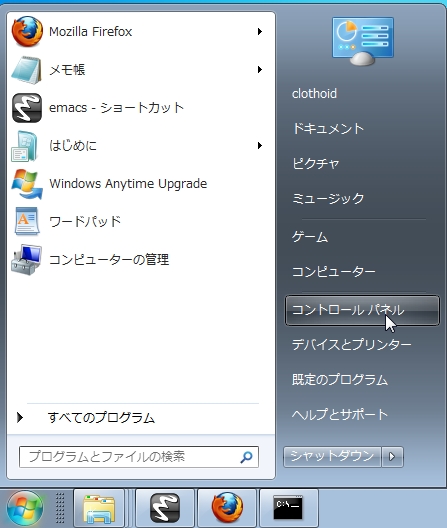
[ネットワークとインターネット]

[ネットワークと共有センター]

[アダプター設定の変更]

[デバイス名]に[TAP-Win32 Adapter V8 colinux]と書いてあるものを右クリッ
クして、プロパティを選択

[インターネット プロトコル バージョン 4 (TCP/IP v4)]を選択し、[プロパ
ティ]を選択。

[次の IP アドレスを使う]を選択し、[ IP アドレス] に [ BBB.BBB.BBB.BBB ]、[サブ
ネットマスク]に、[CCC.CCC.CCC.CCC]を入力して、[ OK ]を選択。

*** 使用するディスクを変更
2GB の方をやめて、40GB の方を使う。
===
mv rootfs_2gb.img rootfs_2gb.img.old
emacs squeeze.conf
diff -a squeeze.conf.orig squeeze.conf
2c2
< cobd0="rootfs_2gb.img"
---
> cobd0="rootfs_40gb.img"
8a9,10
> eth1=tuntap
> cofs0=C:\
===
*** ssh での接続と日本語表示、日本語入力の設定
cygsin (gnupack) 側で、以下を実行
===
cd /c/coLinux/
cygstart squeeze.bat &
~/bin/cocot.exe -t CP932 -p UTF-8 ssh AAA.AAA.AAA.AAA
Are you sure you want to continue connecting (yes/no)? yes
===
colinux に入ったら、ロケールを入れる
---
su
aptitude install locales util-linux-locales
dpkg-reconfigure locales
---
aptitude した時に以下のエラーになる事があった。
---
[100%] Building dependency treeSegmentation fault
---
そのときは
---
rm -rf /var/cache/apt/*.bin ←よくわからない
---
をやって、再実行で解決した。aptitude clear を毎回やっておい
た方がいいのかもしれない。
た方がいいのかもしれない。
以下、画面のように設定。インストールするものを選ぶには
スペースキー、[OK] や [Cancel] に移動するには TAB。
[en_US ISO-8859-1] と [en_US.UTF-8 UTF-8] を選択

[ja._JP.EUC-JP EUC-JP] と [ja_JP.UTF-8 UTF-8] をさらに選択して、OK

[None] を選択
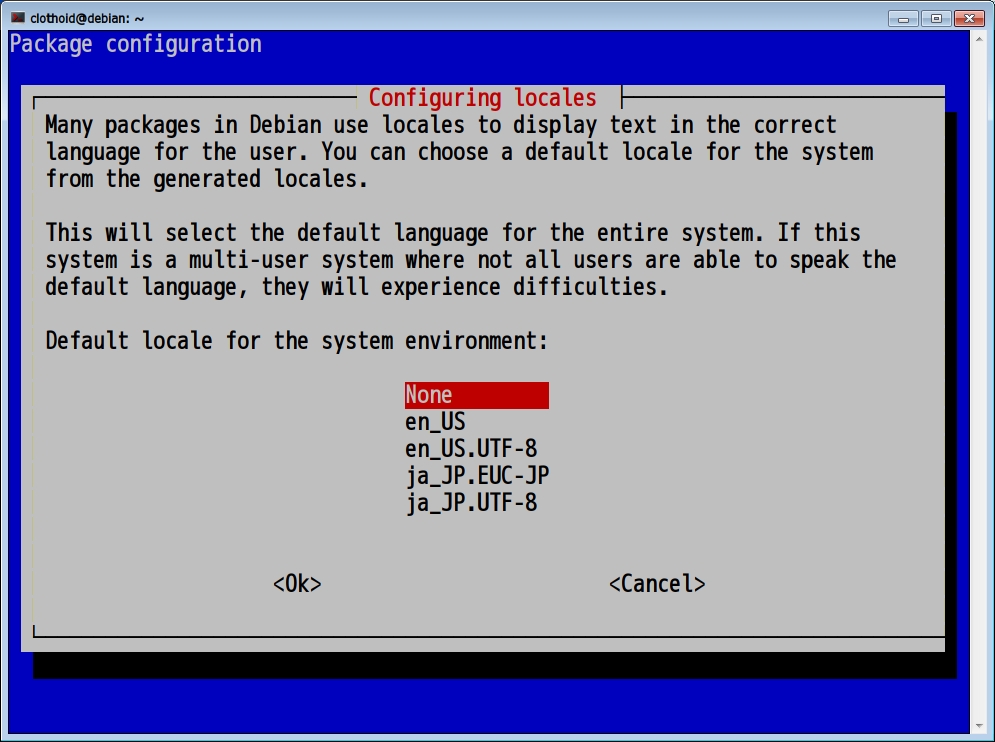
生成が終わったら、一般ユーザーに戻って、環境変数を設定
---
exit
export LANG=ja_JP.UTF-8
---
以上で設定が終わるため、各コマンドで内容を確認
---
man
ifconfig
mount
df -m
emacs
---
M-x list-color-display

登録:
投稿 (Atom)